Showing posts with label Computer Hardware. Show all posts

Saturday, March 19, 2016

Session 4 : The Windows System Management Tools (Last Session of Chapter 2)

Windows System Management Tools

Some of the important Windows system management tools are:
-The Computer Management Console
-The Registry

The Computer Management Console
Computer Management is the primary administrative tool you will use to manage and configure a Windows XP computer.


The Registry
The registry is the central configuration database where Windows stores and retrieves startup settings, hardware and software configuration information, and information for local user accounts.


What you have learn before,  let review it:
1-The commonly used operating system on a personal computer are Microsoft Windows, Unix, Linux, and Apple Macintosh Operating Systems.
2-The primary components of the Windows user interface are Windows desktop, taskbar, start menu, Windows explorer, My Computer, My Documents folder, control panel, command Prompt, and My Network Places. 
3-The primary tools and functions used in Windows file system management are directories and folders, file extensions, file attributes, file systems, and shared resources.
4-Some of the important Windows system management tools are computer management console and registry.

Let's move to next chapter...

Session 3 : Windows File System Management (Continued....)

Windows File System Management

The primary tools and functions used in Windows file system management are:

-Directories and Folders
-File Extensions
-File Attributes
-File Systems
-Shared Resources

Windows supports several different file systems. They are:

+FAT / FAT32
   -Legacy file systems
   -Support dual-boot to DOS
   -FAT: floppy disks, very small drives
   -FAT32: enhanced for larger drives
   -No security, encryption, compression
+NTFS
   -Permissions
   -Encryption
   -Compression
   -Large files and drives
 +Media file systems
   -For other media


Permission
Permissions are security settings that control access to individual objects, such as files.


NTFS File Permissions
There are five standard NTFS permissions you can assign to files. They are:
~Read
~Write
~Read & Execute
~Modify
~Full Control

NTFS Folder Permissions

There are six standard NTFS permissions you can assign to files. They are:
~List Folder Contents
~Read
~Write
~Read & Execute
~Modify
~Full Control

Share Resource
A share is any network resource that is available to other computer users on the network. Typical shares include folders, printers, and drives.

Share folder permission
You can set three different levels of permissions on shared folders. 


Let's move to last session is session 4, Chapter 2...

Session 3 : The Windows File System Management (Chapter 2)

Windows File System Management


The primary tools and functions used in Windows file system management are:
-Directories and Folders
-File Extensions
-File Attributes
-File Systems
-Shared Resources

Directories and Folder
Directory and folder are interchangeable terms for a component in a file system hierarchy that provides a container to organize files and other folders.


File Extensions
Standard file extensions following the names of files can indicate whether a particular file is a system, program, or data file.


File Attribute
There are several standard attributes you can set or clear on files and folders on Windows systems. They are:
~Archive
~Hidden
~Read-only
~System
~Index (Windows only)


Let's continued to session 3, chapter 2....


Session 2 : Windows User Interface Components (Continued...)

Windows User Interface Components (Continued...)

The primary components of the Windows user interface are:
-Windows Desktop
-Taskbar
-Start Menu
-Windows Explorer
-My Computer
-My Documents Folder
-Control Panel
-Command Prompt
-My Network Places

My ComputerMy Computer is used to manage files and folders on a computer and on any storage devices attached to the computer. It has a single pane view of Windows explorer, which has an additional task pane.


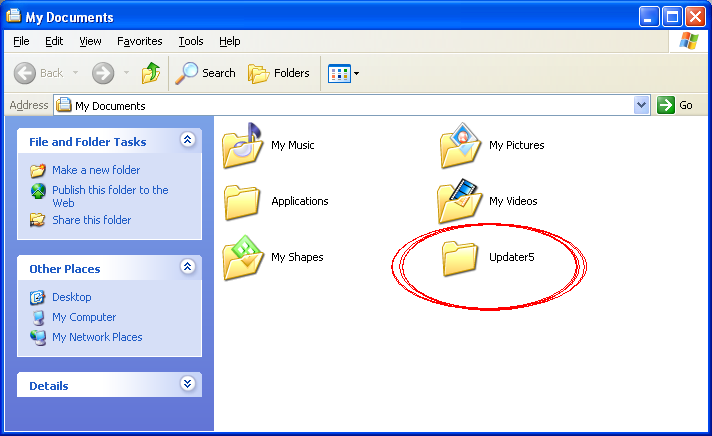
My Documents FolderEach user on a Windows system has a personal folder named My Documents for storing the user’s individual files.


Control PanelThe Control Panel is a graphical interface that provides access to a number of utilities that you can use to configure the Windows operating system or the computer’s hardware.


Command PromptThe Command Prompt enables you to enter text-based commands or run command-line tools.


My Network PlacesMy Network Places is a view of My Computer that enables you to connect to other computers and to manage files and folders elsewhere on the network.


Let's move to session 3, Chapter 2....

Session 2 : Windows User Interface Components (Chapter 2)

Windows User Interface Components

The primary components of the Windows user interface are:
-Windows Desktop
-Taskbar
-Start Menu
-Windows Explorer
-My Computer
-My Documents Folder
-Control Panel
-Command Prompt
-My Network Places

The Window Desktop
The Windows desktop is a general term for the overall contents of the computer screen that displays whenever Windows is running.


The Taskbar
The Taskbar is located at the bottom of the screen.


The Start Menu
The Start Menu is the main entry point into the Windows user interface. You can access programs, tools, and documents by choosing them directly from the Start menu or from one of its sub-menus.


Window Explore
Windows Explorer is a graphical tool that enables users to manage files and folders on a computer.


Let's continued to next part in session 2, Chapter 2...

Session 1 : The Common Use Personal Computer Operating Systems (Chapter 2)

In this Chapter 2, you will learn to:
Identify the major personal computer operating systems.
Identify the primary components of the Windows user interface.
Identify the primary tools and functions used in Windows file system management.
Identify Windows system management tools.

Personal Computer Operating Systems

The commonly used operating system on a personal computer are:
-Microsoft Windows
-Unix
-Linux
-Apple Macintosh Operating Systems


Microsoft Windows
~Is the most popular desktop and server OS
~Provides graphical user interface (GUI)
~Supports wide range of application and devices
~Requires a minimum 32-bit memory for processing
~Provides native networking support
~Supports a large suite of built-in applications and accessories
~Often comes preinstalled on many PCs sold commercially

Microsoft Windows Version
~Microsoft Windows comes in several different versions, such as:
~Windows Vista 
~Windows XP 
~Windows Server 2003
~Windows 2000
~Windows 9x and Me
~Windows NT
~Older Windows Desktop Operating System


UNIX
~Systems share a kernel/shell architecture
~Is portable to different hardware platforms
~Incorporates built-in multitasking, multiuser, built-in networking, and a robust development platform


Linux
~Is an Open-standard UNIX derivative, developed by Linus Torvalds 
~Incorporates built-in multitasking, multiuser, built-in networking, and a robust development platform.
~Code is open. It can be downloaded, modified, and installed freely


Mac OS® X features
~Multiple user support
~Integrated Mac, Windows, and UNIX server, file, and printer browsing in the Finder
~Safari™ Web browser
~Native TCP/IP networking
~Many file- and network-level security features
~Wide hardware device support with a unique Macintosh computer system design


Let's move to next session 2, Chapter 2...

Wednesday, March 16, 2016

Session 6 : The Personal Computer Connection Methods

The various PC connection methods are: 

-Ports 

-Personal Computer Connections 
-Serial Connections 
-Parallel Connections 
-Universal Serial Bus (USB) Connections 
-IEEE 1394 and FireWire Connections 
-Small Computer Systems Interface (SCSI) Connections 
-Parallel ATA (PATA) Connections 
-Serial ATA (SATA) Connections 

Let's see the details of connection


Port

A port is a hardware connection interface on a personal computer that enables devices to be connected to the computer. 


Personal Computer Connection 

A personal computer connection is a means by which a personal computer component is attached to other components to provide computing capabilities.


Serial Connections 

A serial connection is a personal computer connection that transfers data one bit at a time over a single wire. 


Parallel Connections 

A parallel connection is a personal computer connection that transfers data eight bits at a time over eight wires and is typically used to connect a printer to a system unit. 


USB Connections 

A USB connection is a personal computer connection that enables you to connect multiple peripherals to a single port with high performance and minimal device configuration. 


IEEE 1394 and FireWire Connections 

A FireWire connection is a personal computer connection that provides a high-speed interface for peripheral devices that are designed to use the IEEE 1394 standard. 


Small Computer Systems Interface (SCSI) Connections 

A SCSI connection is a personal computer connection that connects internal and external components to the system unit and provides for high-speed data transfer.


Parallel ATA (PATA) Connections 
A PATA connection is a personal computer connection that provides a parallel data channel from a disk controller to the disk drives. 


Serial ATA (SATA) Connections 

A SATA connection is a personal computer connection that 

provides a serial data channel between the drive controller and the disk drives. 


Summary

In this session, you learned that:
~The four primary components of a typical personal computer are system unit, display device, input devices, and external devices.

~The major components of the system unit are system board,CPU, memory, system bus, and storage devices.

~The various types of storage devices used in personal computers are FDD, HDD, optical drives, tape drives, and solid state storage devices.

~The various PC connection methods are ports, PC connections, serial connections, parallel connections, USB connections, IEEE 1394 and FireWire connections, SCSI connections, PATA connections, and SATA connections.


Let's move to next chapter...
Session 5 : The type of Storage Device and System Board form factor

The type of Storage Devices 

The various types of storage devices used in personal computers are: 
Floppy Disk Drives (FDD) 
Hard Disk Drives (HDD) 
Optical Drives 
Tape Drives 
Solid State Storage devices 

Floppy Disk Drives (FDD) 
FDD is a personal computer storage device that reads data from, and writes data to, removable disks made of flexible Mylar plastic covered with a magnetic coating and enclosed in a stiff, protective, plastic case. 

Front view 3.5-inch floppy disk drive 


Hard Disk Drives (HDD) 
HDD is a personal computer storage device that uses fixed media, which means that the disk is built into the drive and 
the drives are not removed from the computer unless you are performing an upgrade or a repair. 


Optical Disks 
An optical disk is a personal computer storage device that stores data optically, rather than magnetically. 


Optical disks and drives come in several types, such as: 
CD-ROM 
CD-R 
CD-RW 
DVD-ROM 
DVD-R DVD+R 
DVD+R DL 
DVD-RW DVD+RW DVD-RAM 


Tape Drives 
A tape drive is a personal computer storage device that 
stores data magnetically on a removable tape that is enclosed in a tape cartridge. 

Solid State Storage 
Solid state storage is a personal computer storage device 
that stores data in special types of memory instead of on disks or tape. 


The System Board Form Factors 

The form factor describes the size and shape of the system board. 
Common System Boards are: 
-Full size AT 
-Baby AT 
-ATX 
-microATX 
-LPX NLX BTX 

Let's move to next session...

Session 4 : What is the Cooling System and important of it?

Cooling Systems 

Computer systems contain several components that require cooling: 
The computer case 
The CPU 
The power supply 
Some adapter cards 
Some hard disk drives 

Adapter Cards 

An adapter card is a printed circuit board that you install into a slot on the computer's system board to expand the functionality of the computer. 


Riser Cards 

A riser card is a board that plugs in to the system board and provides additional slots for adapter cards.. 


Let's move to next session...


Session 3 : The all components of System Units

System Units Components

The system unit itself has several important sub-components, such as: 

System Board 
Central Processing Unit (CPU) 
Memory 
System Bus 
Storage devices 
Power Supplies 

The System Board 
The system board is the personal computer component that acts as the backbone for the entire computer system. 


The Central Processing Unit (CPU) 

The central processing unit (CPU), sometimes called microprocessor or just processor, is the real brains of the computer and is where most of the calculations take place. 


Memory 

Memory is the personal computer component that 
comprises the electronic storage areas in the computer. It can be considered either volatile or non-volatile. 


System Bus

The system bus is the main communication path between the CPU and memory. 


Storage Devices 

A storage device is a system unit component, such as a hard drive, that enables users to save data for reuse at a later time, even after the personal computer is shut down and restarted. 


Power Supplies 

A power supply is an internal computer component that converts AC power from an electrical outlet to the DC power needed by system components. 


Let's move to next session...